 Bluefoot Diary中文
How to print staff paper: A4, Letter and piano grand staves
Choose the paper size and staff type, adjust spacing and staff count, then download a PDF. Match the printer’s paper and scale settings to the file so the selected line spacing survives printing.
Choose a staff type and paper size
Open the staff paper generator. Select A4 for A4 sheets. If you use Letter, choose Letter in both the generator and print dialog.
| What you are writing | Staff option |
|---|---|
| A melody or note-reading exercise | Treble or bass single staves |
| A two-hand piano passage | Piano grand staves |
| Your own choice of clef | No clef |
A4 measures 210 × 297 mm; Letter measures 215.9 × 279.4 mm. They are different sizes. Mixing them can trigger automatic scaling in the print software.
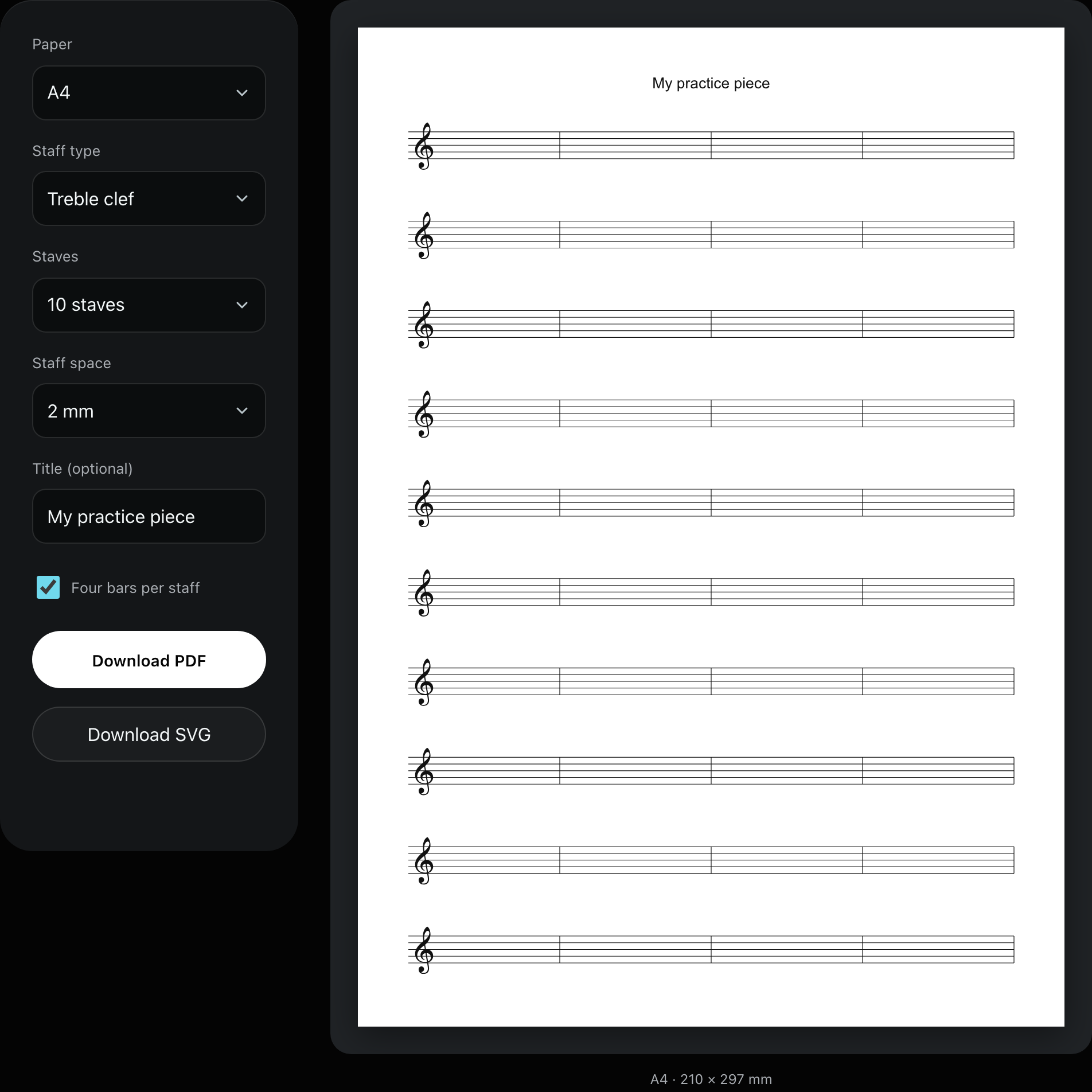
Leave enough room for handwriting
Line spacing is the gap between adjacent staff lines, not the height of the whole staff. Five lines contain four gaps: 2 mm spacing makes the distance from the top to bottom line 8 mm; 2.5 mm spacing makes it 10 mm.
For larger handwritten notes or ledger lines, try 2.5 mm and fewer staves. Single-staff layouts allow 3–14 staves, with a maximum of 12 at 2.5 mm spacing. Piano layouts allow 3–6 grand-staff systems.
Use the title for a date or passage name. The optional four-bar divisions add blank barlines, not notes or a generated melody. Check the preview for room between staves, especially if you will add lyrics, fingering or ledger lines.
Download the PDF and print at 100%
- Check the clef, staff count, spacing and title in the preview.
- Download PDF and open it in a PDF reader.
- Match the selected paper size. Choose Actual size or 100%, then print one test page to check the edges and spacing.
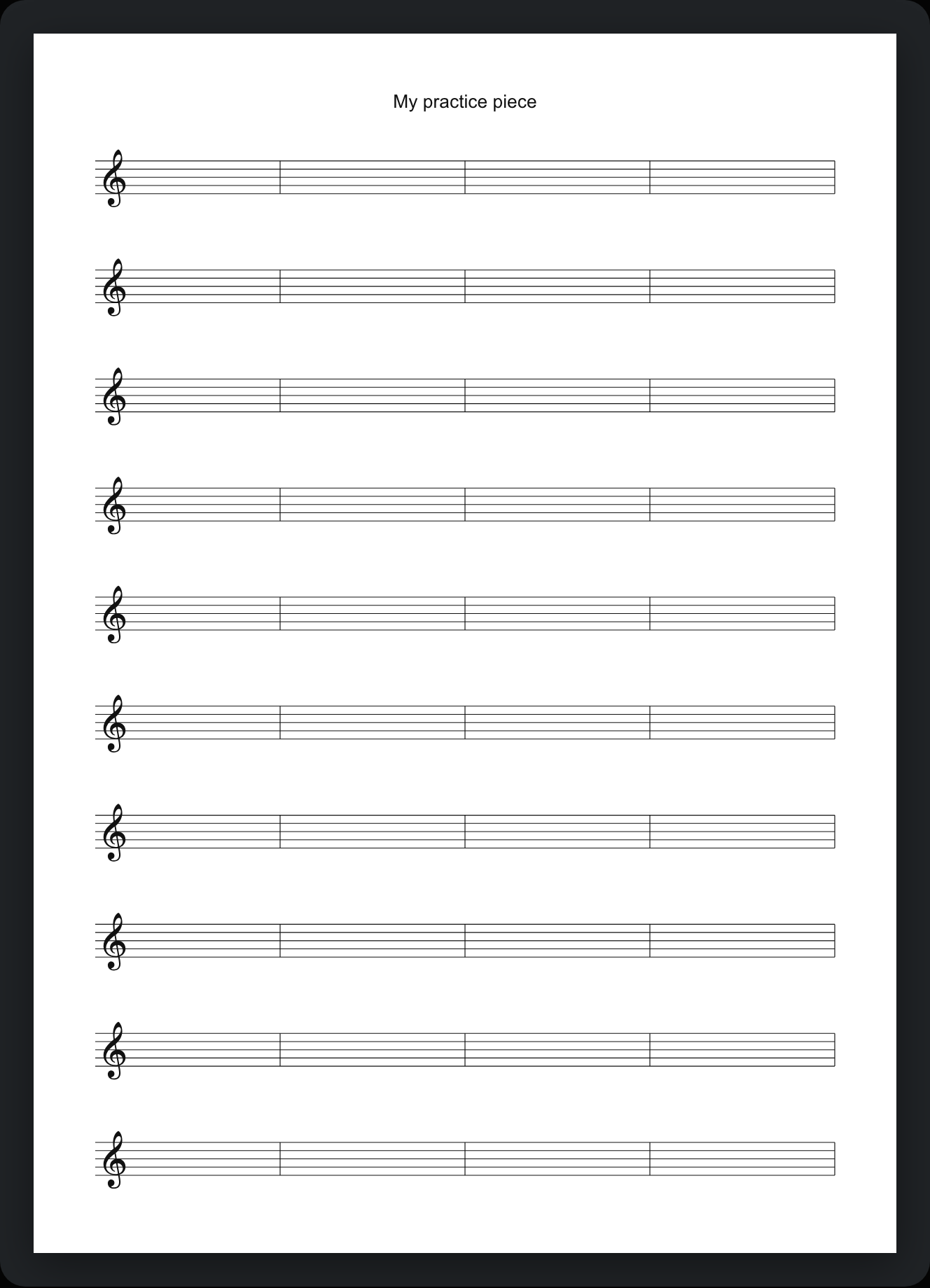
The PDF is a single-page vector file, so enlarging it does not turn the lines into a blurry screenshot. SVG is useful for further work in a vector editor; PDF is the simpler choice for ordinary printing.
The layout leaves roughly 15 mm margins, but printable areas vary by printer. If the preview looks complete and the paper is clipped, check the paper size, orientation and printer margins.
Fix a shrunken page or crowded staves
The whole page is smaller: check for Fit to page, or an A4 file being printed on Letter paper. Correct the paper selection before changing the scale.
No room for fingering or ledger lines: reduce the staff count. Increase line spacing if you also need a larger staff. Enlarging the whole page can remove useful margins.
Write out missed notes from note-reading practice, or copy different chord inversions to compare how the same pitches sit on a staff.
Common questions
Can I enter notes on the webpage?
No. The tool creates blank staff paper with optional barlines; it is not a notation editor. Write on the printed sheet or take the SVG into a suitable editor.
Why are fewer staves available at wider spacing?
The page height is fixed. Wider staff spacing takes more room, so fewer staves preserve useful handwriting space between them.